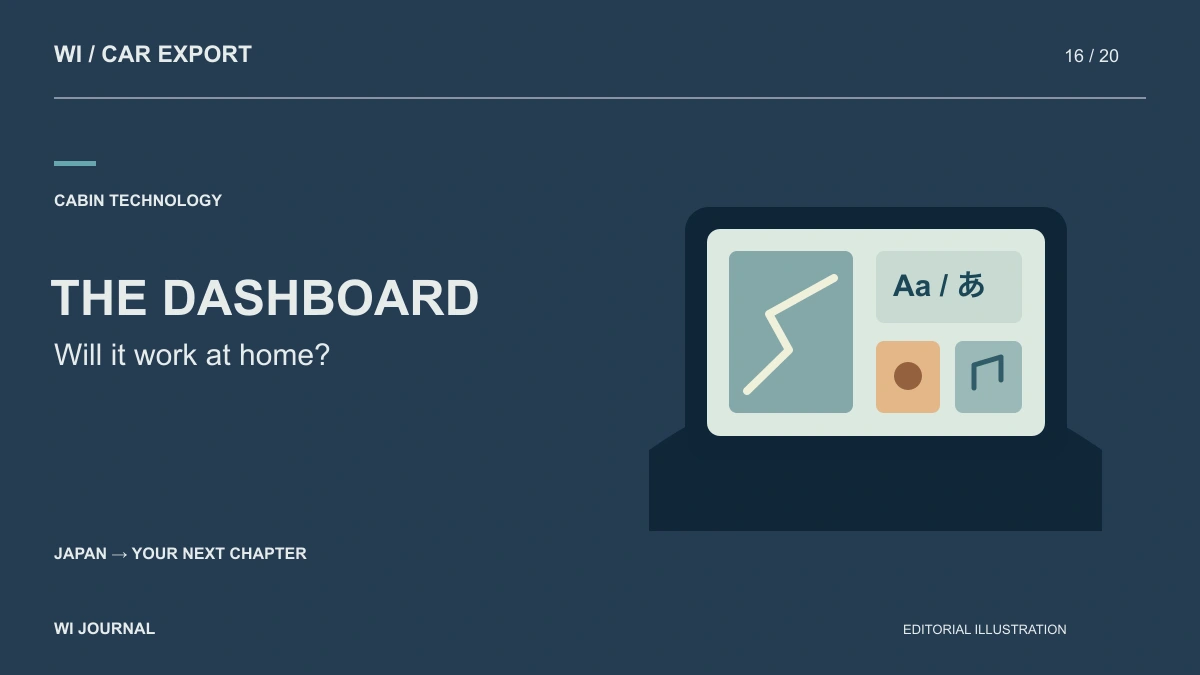
Check a Japanese car’s exact infotainment unit for language, phone, maps, radio and camera operation before buying for use abroad.
Japanese-market infotainment cannot be judged from the car’s year or dashboard shape. Identify the installed head unit, then verify language, phone connection, maps, radio and camera functions one by one. A result for another trim, software version or aftermarket unit is useful only if you can prove it is the same system.
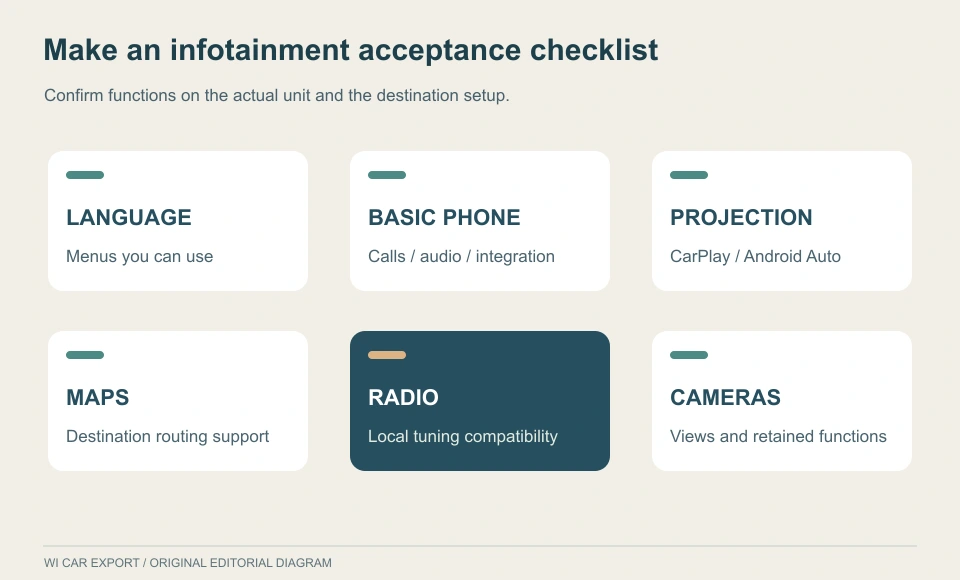
Start with unit identity, not a feature list
Request this evidence while the vehicle is in Japan:
- a powered-on photo of the home screen;
- a photo of the settings or system-information page;
- the model or part number on the unit, where accessible without dismantling;
- the car’s model code, grade and first-registration information;
- photos of the USB ports, steering-wheel controls and camera view;
- the relevant owner’s or multimedia manual link, matched to that unit.
Factory and aftermarket systems can appear in the same model, while factory systems may differ by display size, options and production period. Treat visual resemblance as a research lead, not proof.
Verify six functions independently
1. Language
Ask for a short video showing the path from the home screen to the language setting and the screen after a restart. Record what remains in Japanese: audio menus, voice prompts, map labels, climate displays or warning messages may not all follow one switch.
A Toyota Yaris multimedia manual, for example, describes Japanese/English selection but warns that changing to English does not necessarily change every display and voice-guidance item (Toyota Yaris manual). That is evidence for the described Yaris system only—not a promise that every Toyota, or every unit in a Yaris, behaves the same way.
2. Phone calling and audio
Separate basic Bluetooth pairing from contact sync, call audio, microphone quality and media playback. Ask for the exact phone make, operating-system version and pairing result used in the check. Delete test-phone and previous-user data before handover.
A Bluetooth logo or USB socket does not prove smartphone projection. Google says Android Auto on the car display requires a compatible car or stereo and specifically notes that it will not work on every car merely because a USB port is present (Android Auto Help).
3. Apple CarPlay or Android Auto
Confirm whether the installed unit supports wired projection, wireless projection, neither, or an aftermarket interface. Request a video of a compatible phone connecting and the projected home screen opening. Check which USB port is used and whether steering-wheel, microphone and call controls still function.
Apple’s setup guidance likewise starts by requiring both a supported country or region and a CarPlay-compatible car; wired and wireless connections follow different procedures (Apple Support). A manufacturer compatibility list or online forum can narrow the search, but the installed unit and test phone provide the decisive evidence.
4. Maps
For maps, ask whether the unit can display and route within the destination country, whether legal map data is available for that exact model, and who will install or update it. A GPS position shown in Japan proves only that the current system can locate itself there. If destination maps cannot be verified, price the car on the assumption that phone navigation or a replacement unit may be needed.
5. Radio
Do not accept “the radio works” as the conclusion. Ask someone to record the band, tune limits and tuning steps. Check destination broadcasts and any adapter solution with a local installer; they depend on the unit and market.
6. Reversing and surround cameras
Request a continuous video showing selection of reverse, the image appearing, steering-guideline movement if fitted, and return to the previous screen. Ask whether parking sensors, vehicle settings, amplifier, steering controls or climate information are integrated into the original display.
These links matter if replacement is being considered. “Install an English head unit” is not a complete plan until an installer confirms camera signal, connectors, control interfaces, fascia, microphone and any vehicle-setting access for the exact car.
Record outcomes as pass, workaround or unresolved
Use a simple decision sheet:
| Function | Pass | Workaround | Unresolved |
|---|---|---|---|
| Language | Required menus demonstrated | Translation reference accepted | No matched-unit evidence |
| Phone | Your phone type tested | Separate hands-free device | Pairing not verified |
| Phone projection | CarPlay or Android Auto demonstrated | Independent phone navigation accepted | Installed-unit support unverified |
| Maps | Destination routing demonstrated | Phone navigation accepted | Update path unknown |
| Radio | Destination use confirmed | Installer-approved solution | Tuning range unknown |
| Cameras | Original operation demonstrated | Matched integration quoted | Replacement impact unknown |
The buyer decides which workarounds are acceptable. A Japanese-only map can be manageable for someone committed to phone navigation; an unresolved camera interface may be a deal-breaker when the display must be replaced. Put the cost and responsibility for each workaround into the buying decision before shipment.
Request evidence while the car is accessible
The best time to settle these questions is before purchase, when the actual unit can still be photographed and operated. Keep the files with the stock reference and avoid assuming that a later software update will add an undocumented feature.
Contact WI Car Export with the stock link, destination and your six-function checklist to ask which infotainment photos or demonstrations are available for that vehicle.
Original WI Car Export editorial illustration, AI-assisted vector design. Not vehicle photography.